I was happy to find out that Google Analytics 4 can track file downloads. However, I didn’t find any native report in the interface to display the downloaded file names, other than for the last thirty minutes. It actually requires jumping through a lot of hoops to set up a report to do this. After searching online, I found a great video from Growth Learner which explains this and many other things.
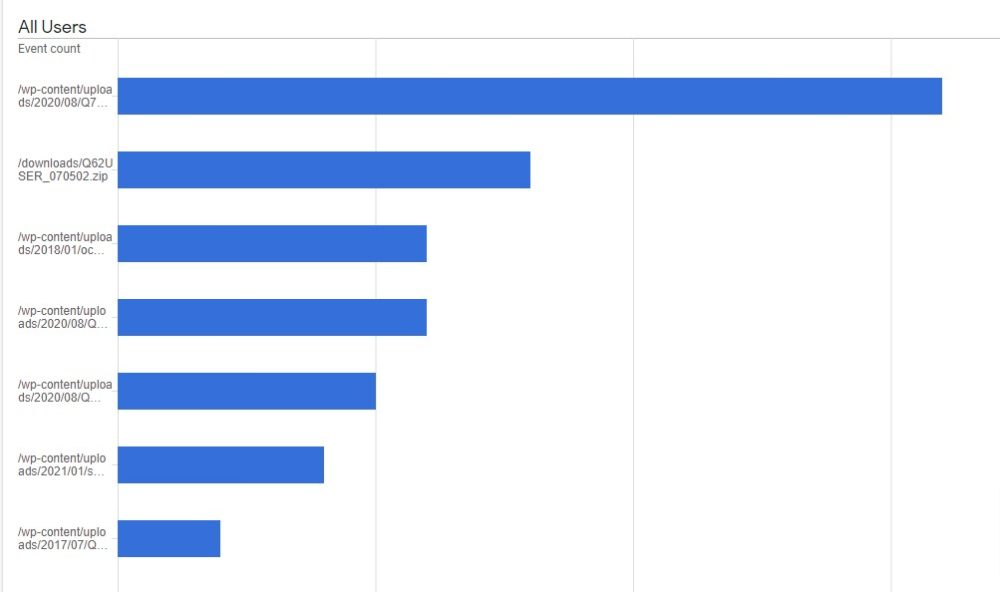
In this post, I’ll try to summarize the steps to generate a report in Google Analytics 4 showing the filenames of the files that have been downloaded on your site. No Google Tag Manager required.
1. Make Sure Tracking of File Downloads is Enabled
The first thing you should do is verify that Enhanced Measurement is enabled for File Downloads. This is enabled by default, so you’re probably fine, but if you want to verify, log into your GA4 account, here’s how:
Click Admin (gear icon in lower left corner) -> Setup Assistant -> Data Streams -> Click your site name
Once there, click “+ 3 more” in the Enhanced Measurement section to show all of the items you’re measuring. Make sure “File downloads” is one of them.
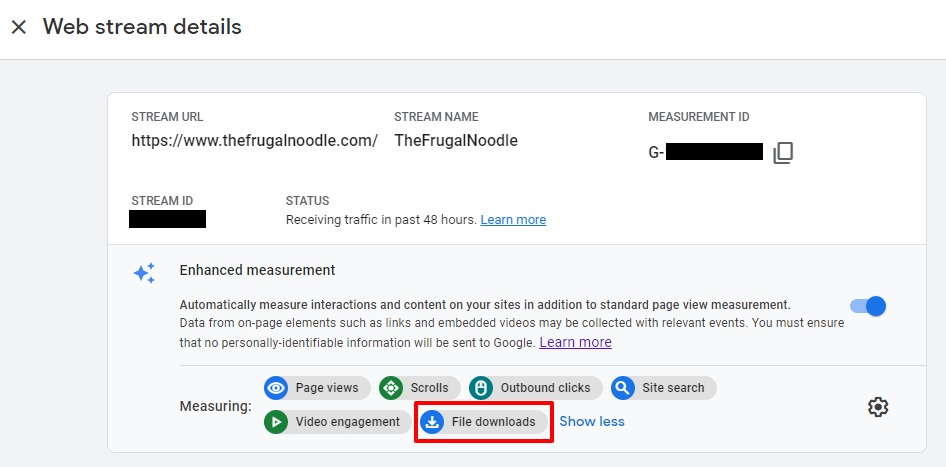
If not, add it by clicking the gear icon.
2. Create an Exploration
The next thing you want to do is create an “Exploration”, which is just kind of a fancy name for a custom chart.
In the left sidebar menu of Google Analytics 4, click on Explore, then click the plus sign to create a blank Exploration.
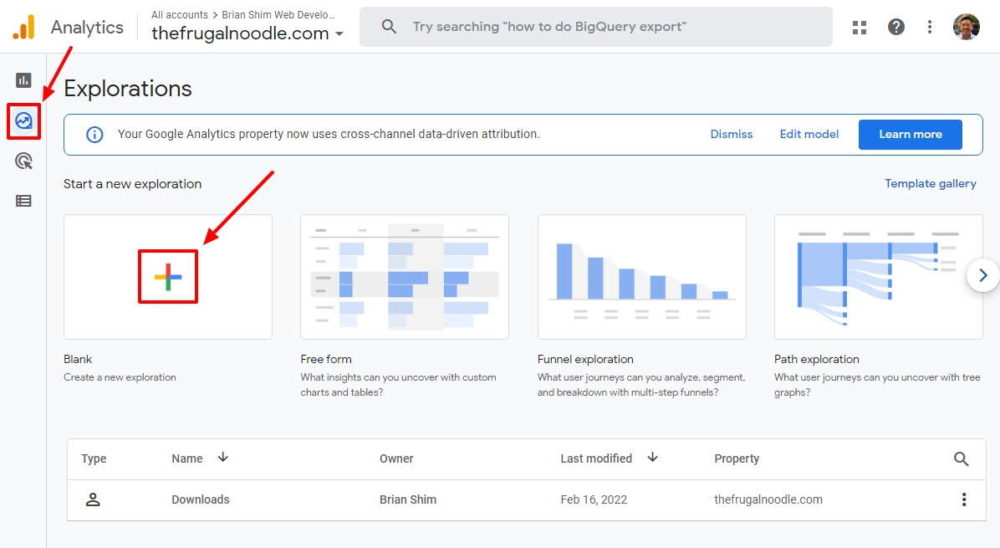
In the top left, change the Exploration Name to something that makes sense, such as “Downloads”.
3. Add Variables to the Exploration
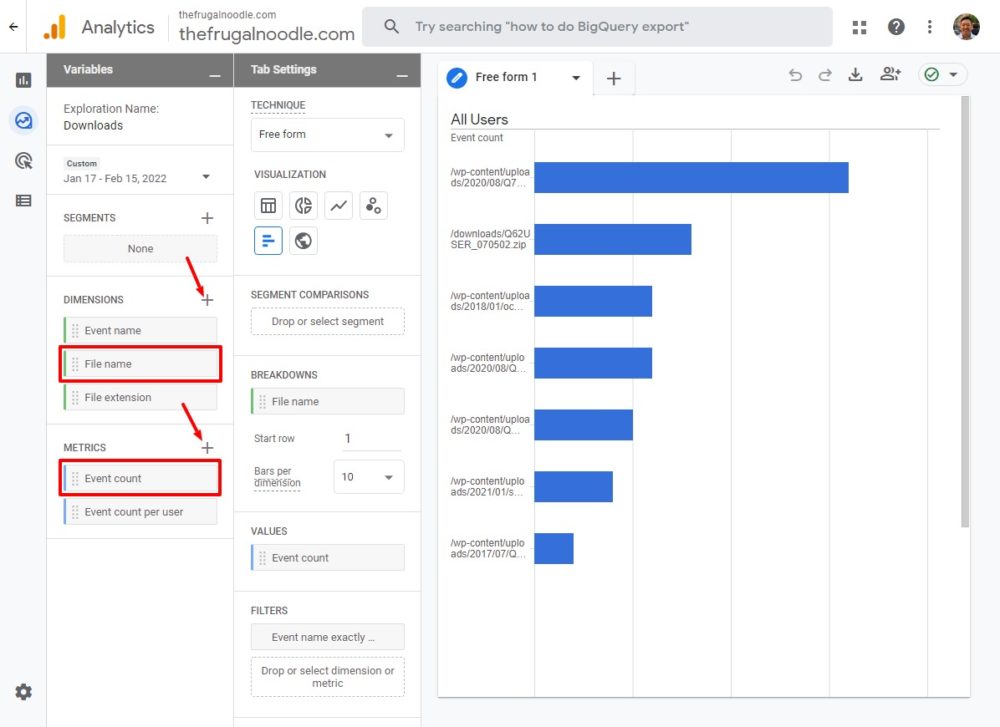
In the left Variables column, there are areas for Dimensions and Metrics. You’ll want File name as one of your dimensions and Event count as one of your metrics. Click the plus sign to add these.
4. Drag to Tab Settings
Once you’ve added the proper variables in the Variables column, they become available to drag to the Tab Settings column.
Click the bar graph icon near the top, then drag “File name” to BREAKDOWNS and “Event count” to VALUES as shown:
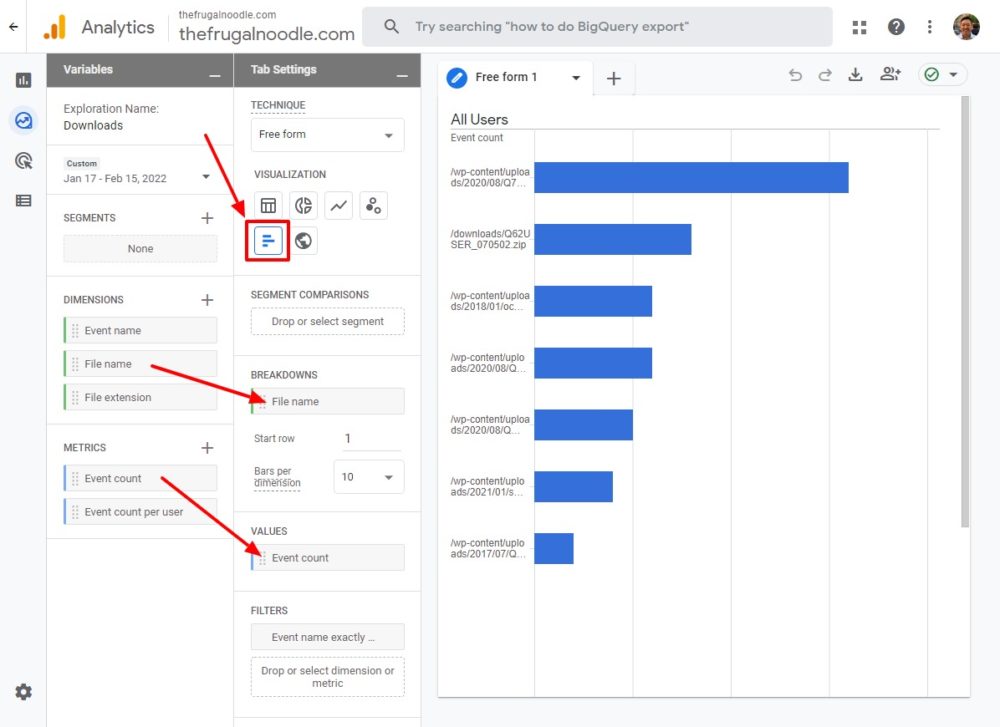
Even though you will see data, you’re not done yet…
5. Set Filters
You need to filter the result so that only file downloads show up in the graph. Go to the FILTERS section. Drag or select Event name, then set it to “exactly matches” “file_download” as shown:
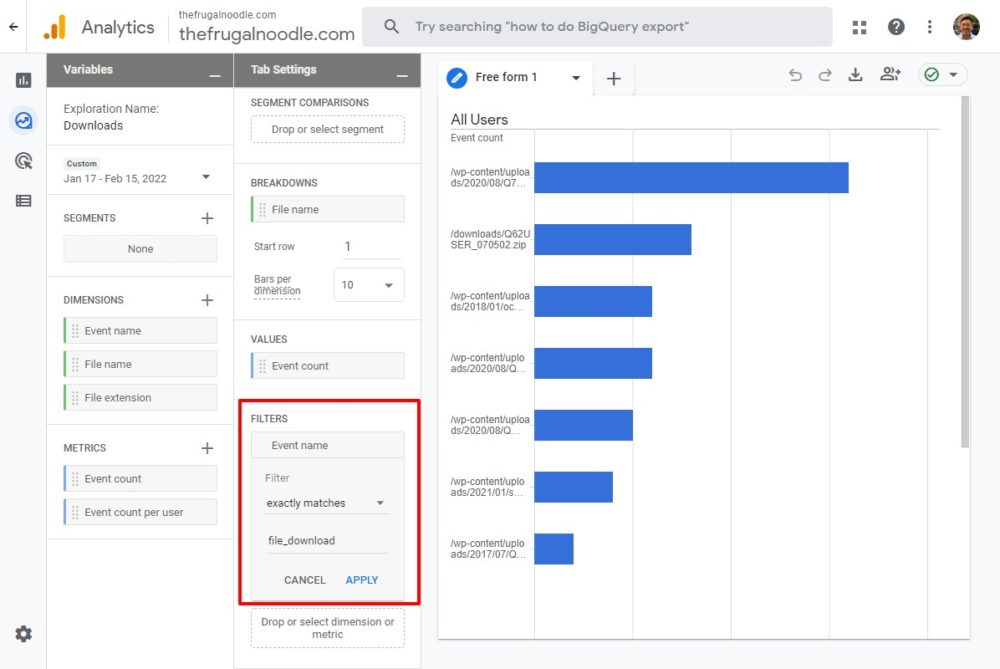
Once you’ve done that, you should see a nice graph to the right with downloaded filenames as the y-axis and the number of downloads as the x-axis!
If you have long filenames, it might be kind of hard to read, but you can export the results to a spreadsheet.
6. Set Date Range
Near the top of the left Variables column, you can set the date range for the graph.
7. Set Data Retention Time
The time frame for the graph is set in the pulldown in the Variables column. Reader Tony noticed that in his account, he could only select the last 60 days of data though. I had the same problem with my account too!
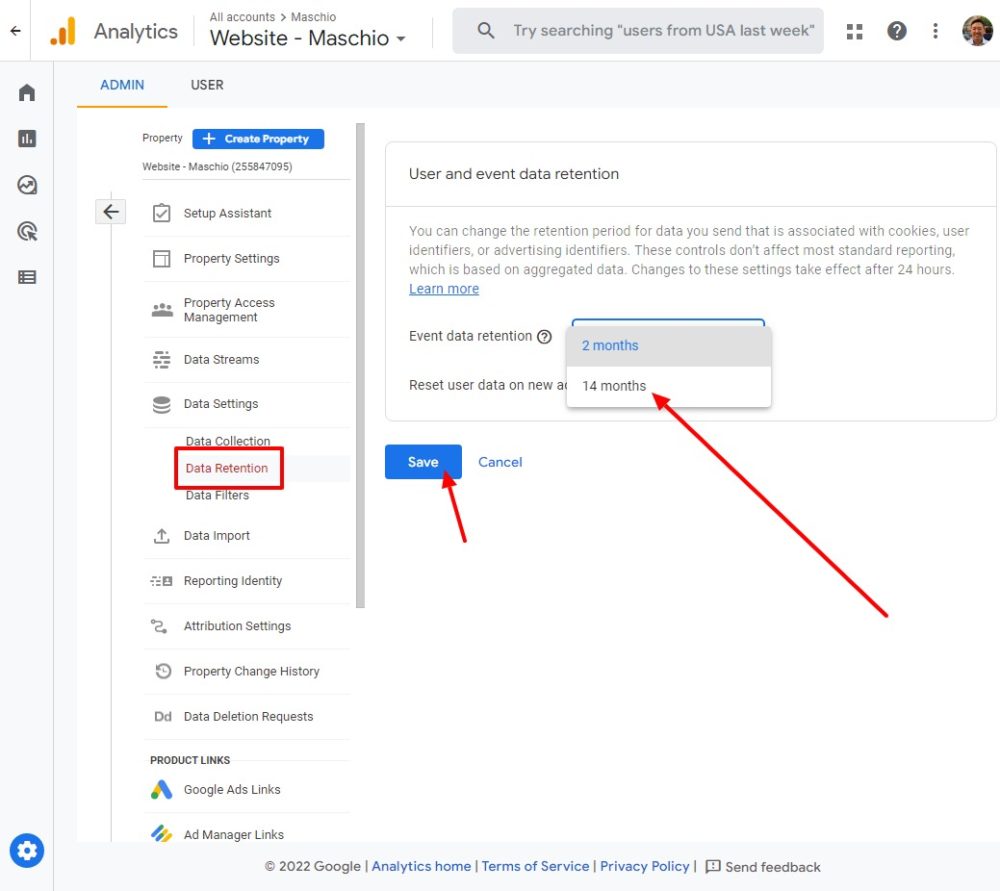
The solution, he found, is to set your “data retention” to 14 months (the max) instead of 2 months (the default). To do this, go to your GA4 account -> Admin (gear icon in the lower-left corner) -> Data Settings -> Data Retention, and set that to 14 months as shown:
Limitations
The 14-month data storage limitation is ludicrous in my opinion. Hopefully, Google will extend that in the future.
Another limit that reader David discovered is a 100-character limit on the path plus filename. Even if you export the data, the path/filenames will be cropped at 100 characters. I don’t know of a way around this either, as the limit seems to be baked into Google’s database.
You can see more of the filenames by hovering over them with the mouse, but they’re still limited to 100 characters.
Hope this helps! Did it work for you? Please leave a comment below. – Brian

I am a freelance web developer and consultant based in Santa Monica, CA. I’ve been designing websites using WordPress and from scratch using HTML, CSS, PHP, and JavaScript since 2010. I create websites and web applications for businesses, nonprofits, and other organizations. I have a degree in Electrical Engineering (BSEE) from California Institute of Technology and a degree in Engineering Management (MSEM) from Stanford University. If you need help with your site, you can hire me!
Hi Brian, love the article! Do I need to set up GTM tags for this to work?
I currently have GTM set on a few pdfs, and have noticed that my report bundles everything together or shows data for pdfs that have no GTM set on them. I was hoping to not use GTM and that GA4 would automatically track all pdf downloads?
Hi Mel,
You do not need GTM for this technique to work. I didn’t use GTM in my example.
Best,
Brian
Thank you! So helpful!
Hi Connie, glad it worked for you! – Brian
Thanks Brian!
What if my Filters section isn’t showing me the option ‘Event Name’?
Never mind – I figured it out. Thanks
Great!
Super helpful. Thank you.
Are you aware of any way to get the full filename of downloads. We have some longer paths and it clips them, and that makes it a bit of a challenging to identify the download. I’ve tried saving in other formats, but it clips all the same.
Hi David,
Thanks for commenting!
There are two workarounds that I know of (which I’ll add to the article)…
If you hover over the filename, you can see the full filename. That is just one-at-a-time, so if you want to see all of them, export the data to CSV by pressing the download icon in the upper right corner.
Best,
Brian
Great info, thank you!
We have some file downloads that are not automatically tracked through Enhanced measurements, for example .dmg downloads for macOS. Is there an easy way to track those too?
Hi Maya,
Wow, I didn’t know that downloads of some file types are not tracked. I would have thought that all downloads would be tracked. Let me know if you find a solution.
Best,
Brian
Just what I was looking for..unbelievable how difficult this information is to find! Thankyou Brian!
Hi Andrew,
Glad it was helpful to you!
Thanks,
Brian
Great information. Thanks! Is there any way to export from one account into another account?
Hi Leslie,
You can export to CSV, but I don’t know of a way to transfer data from one GA4 account to another. Let me know if you find a way!
Thanks,
Brian
Very helpful article! When I look at my file downloads report, it won’t let me select a start date older than 60 days. Is there some way to see more than the past 60 days, or can the file report only show 60 days of activity? Thanks for any guidance you can provide on this.
Hi Tony,
I just noticed that in my account as well! Apparently, other people have had that problem too. I found this article (with no replies):
https://support.google.com/analytics/thread/111129256/ga4-exploration-date-range-will-only-let-me-see-60-days?hl=en
I don’t know if it’s a bug or an imposed limit. I’ll let you know if I find anything more.
Thanks,
Brian
Brian,
I just discovered that the default data storage for a GA4 account is set to 60 days. It appears to have 2 options: 2 months and 14 months. We’ve now set ours to 14 months. Hope this helps someone else!
Hi Tony,
Ah, great find! I’ll add that to the article. Many thanks for figuring that out!
Best,
Brian
Very helpful — thank you. Before finding your page I thought I was going to have to spend hours learning about Google Tag Manager!
I’m glad this was helpful to you Matin! Thanks for the comment! – Brian
That worked great! Can we save these reports and schedule emails to clients like we did in GA3?
Hi Karsy,
Glad it worked for you! GA4 will automatically save your Explorations but I don’t think GA4 can send scheduled emails. It’s best to keep GA3 alongside GA4 until the features catch up.
Best,
Brian
Exactly what I was looking for. Thanks!
Hi Jake,
Glad this helped!
Best,
Brian