Have you ever gotten this Linux “out of memory” error when working with your WordPress site?
Fatal error: Out of memory (allocated 63963136) (tried to allocate 7864320 bytes) in [path]/wp-content/plugins/wordfence/lib/wfBrowscapCache.php.php on line 16388If you Google around to solve this problem, almost all of the advice you’ll get is to increase your PHP and WordPress memory limits, or add memory to your server, or to remove plugins.
I didn’t want to just increase memory. I wanted to solve the root cause of the problem. The site was running on an Amazon EC2 small instance with Amazon AMI. It should not be running out of memory!
If you want to go directly to my results, jump ahead to my recommendations. Otherwise, here’s my story:
How I Investigated This Problem
When I first got this error, I installed the TPC! Memory Usage Plugin on my live site. [Note: I no longer recommend that plugin since it’s not maintained. Use Server IP & Memory Usage Display instead.]
I installed this plugin on my local development site as well and was totally blown away when I compared the memory usage on my local site vs. live site: the same site with the same plugins was using 34.13MB on my local server and 60.0MB on the live site. WOW!!!
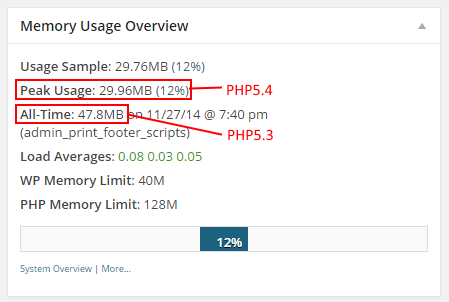
How could this be? There must have been something in the server setup that caused the discrepancy. Googling some more, I read that PHP5.4 uses significantly less memory than PHP5.3, by a huge amount, on the order of cutting it in half. Sure enough, I checked and found out that my local server was running PHP5.4 while my live server was running PHP5.3. It seemed like a smoking gun, but I needed to do one more experiment to be sure.
I had another WordPress site running on Amazon EC2 with Amazon AMI, running PHP5.3. Memory usage for that was 47.8MB. After I upgraded that server to PHP5.4, it used 30.0MB. It was clear, switching from PHP5.3 to PHP5.4 saved almost 18MB of memory! That is huge!!!
My Number One Recommendation – Upgrade PHP
Based on these findings, my number one suggestion to reduce WordPress memory usage is to upgrade from PHP 5.x on your server to PHP 7.x, which is even faster and more memory-efficient. I’m now using PHP 7.3 on all of my personal and client sites.
If you are on shared hosting like GoDaddy, 1&1, Dreamhost, etc., there is often a button in the control panel to upgrade. Simple as that.
If you are running your own Linux server, it’s more complicated. Here is an article describing what I did to upgrade from PHP5.3 to PHP5.4 on Amazon AMI. (This procedure also works for upgrading to PHP5.5 and beyond). Note that there are other solutions to reducing PHP memory usage like Xcache. I’m considering that to be an advanced solution beyond the scope of this article. If you want to try that, go for it and let me know how it goes in the comments!
Be sure to re-test your site and plugins after you upgrade, as there might be some old code not compatible with PHP 7.x. I have not encountered problems with PHP 7.3 on my WordPress sites.
This Can Also Fix HTTP ERROR 500
On a different site, I was getting HTTP ERROR 500 when I tried to edit a page. Viewing pages on the front end was fine. I suspected some sort of memory issue. After trying a bunch of other stuff, I simply upgraded PHP from 7.0 to 7.1 and it solved the problem!
And Don’t Forget..
Of course, it also helps to delete unused plugins. If you want, you can install the Server IP & Memory Usage Display plugin and deactivate plugins on at a time to see their contribution to your memory usage. (Just remember to deactivate it when you’re done, because it contributes to memory usage as well). I can almost guarantee you that none will save you 18MB like switching to PHP5.5 or greater might do! But, eliminating plugins might be just enough to stop your memory errors from happening.
If you are not able to upgrade to PHP7+, and you can’t delete any more plugins, then you can always increase your allowable memory usage and/or get more memory for your server like the vast majority of articles recommend. The Server IP & Memory Usage Display plugin will tell you how much memory is allocated to WordPress (usually 40MB) and to PHP (usually 64MB or 128MB). You can Google around to see how to increase these limits.
But, I prefer to solve the root cause of the problem rather than treat the symptoms!
I hope my experience was helpful to you. Please comment on your findings and experiences about WordPress memory usage! – Brian

I am a freelance web developer and consultant based in Santa Monica, CA. I’ve been designing websites using WordPress and from scratch using HTML, CSS, PHP, and JavaScript since 2010. I create websites and web applications for businesses, nonprofits, and other organizations. I have a degree in Electrical Engineering (BSEE) from California Institute of Technology and a degree in Engineering Management (MSEM) from Stanford University. If you need help with your site, you can hire me!
Thanks, it worked very well on my side.
A quick way to see if its one of many plug-ins using up either memory or IO is to temporarily rename the plugin folder on your worpress installation. This is particularly useful if you have many single sites running on a single hosting account, as you can rename the plugin folder to say xplugins and check the resource usage if nothing changes its not a plug in on that installation, if it fixes the issue you can remove the x and all plugins will be as they were before you renamed the folder, then you can do the same to each plugin (rename the subdirectory the actual plug in is in) until you resolve the issue. This can be time consuming but is a great option and works if you can’t access your wordpress site dashboard because of the IO or Memory usage – you only need access to your file manager in cpanel for example, which should aways be available whether or not your sites rescuers are maxed or not.
Hi…Brian…Awesome blog. But there are a lot of other steps I think you missed. 1. Increase the php memory limit in the php.ini file. 2. Using p2 or anything profile and checking plugins load time. 3 Using WP_Rocket or w3 total and enabling caching.
thanks for your article
Hi Brian,
excellent man .. Thanks a toone .. from the bottom of my heart .. recently I changed my site protocol to https and started getting server 500 error .. most of the time the site was reaching full memory limit ! again googled and first page found your site … with fear I changed server settings to use php version 5.5 and wow .. it worked like a magic .. within fraction of seconds the memory usage came down !
Now I can see that my server allows to use PHP 5.6, 7 , 7.1 versions too. Question to you is shall I upgrade to any of these higher versions ? and if yes, what is downside of it. Will some of the plugins will not work ?
Rgds,
Mahesh
Thank you!!!!! So much!!
Awesome Tweak, Thanks for the info. i have upgraded my wordpress sites’s php version to the latest (is..7.1) and got unimaginable results. Thanks man!
Thanks for the info! As followed, But still my site use high resources. can you please help me deal with it. Please have a look at my site techflout.net
THANK YOU! I was shocked at how old the PHP version was on my own website. It’s been around for a while, but not long enough ago for the version it was running. Yikes!
good Brian, also can recommend this to your viewers…
https://wordpress.org/plugins/server-status-littlebizzy/
for check the memory usage, yes PHP 7 is helping tremendous to our site
Hi All Super Technical Person,
Hope you are doing great.
I am getting CPU and RAM issue with WordPress running on RedHat machine.
Current system Configuration:
RAM: 8GB
OS : RedHat
PHP: 5.5
Mysql: RDS
Below are the error details:
Out Of Memory: kill Process 4890 (httpd) score 174 or sacrifice child
killed process 4890 (httpd) total-vm:3328056kB, anon-rss:1334320kB, file-rss:0kB, shmem-rss:68kB
oom_reaper: reaped process 4890 (httpd), now anon-rss:0kB, file-rss:0kB, shmem-rss:72kB
Please help me how to fix this error.
Also getting High CPU and Ram Utilization and web application goes down frequently
WordPress in general compared to some other popular CMS just uses a really high amount of RAM. My WP sites consume between 150Mb to 400Mb of RAM each, but my PyroCMS or Expression Engine sites consume between 10Mb and 40Mb.
So I believe WP RAM usage needs addressing far more than anything else.
As i am using shared hosting, how can i see that what is consuming more memory? is there any way to look what plugin or file consuming more memory?
You can use this plugin to check memory consumption: https://wordpress.org/plugins/p3-profiler/
Dear Brian, we also release free Server Status plugin if interested:
https://wordpress.org/plugins/server-status-littlebizzy/
Memory usage, disk space, and more, in just a simple widget. Thanks for considering about our plugin and hope you are doing well… ciao ;)
Helo brian..
Few words from my experiences..
1. By choosing to switch to the newest php version is not the only solution but its true does the job.
2. To make low consume processing to ur server u need to think again what plugins do u use, some ppl will use extra security plugin for their wp cms web n this will make higher server processing so at least we need to use good cache processing system too we can use wp cache plugin or else we can install stand alone cache system in our server or else we can use cdn for better speed n low processing too.
3. We can use mariadb instead of mysql.
4. We can choose better dns provider. By using internal server dns system it actually make the server getting heavy to work.
5. No need to use external resources plugin such as social media sharing button esc.
Thx
Brian – this worked wonders. I was able to reduce the size of my site from 104MB to just under 40MB. Thank you SO MUCH for this guide!!!
Thank you so much for posting this – WP can be such a minefield sometimes! I’ve had the same problem after uploading another plugin and since I couldn’t really part with any other, I took the plunge and updated the PHP from 5.3 to 5.5. So far so good and the memory has gone from 97% to 57% instantly.
Wow! After looking for hours through forums, Stackoverflow and the like I was fed up since none of the solutions there worked. And this “hack”, simple as that, magically solved the memory issue, thank you a lot!
We made an upgrade to PHP 7 and could reduce the memory from 79% to 46%. If you have the possibility make an upgrade to PHP7
Had a small query.
My website is currently utilising around 120MBs of RAM after the update of PHP to 5.5.
Is that normal?
When I wrote my last comment here, I just had updated to 5.5, it was around 60 MB.
What are your thoughts?
HI Dev,
Hmmm, that seems strange. Try deactivating your plugins and reactivating one by one to isolate the offender.
Best,
Brian
Hello Brian,
It worked perfectly!
It was really simple.
However I will monitor my site for errors and will report here if any pops up.
I have bookmarked your blog, must check it out from time to time to know some cool tricks like these.
Keep up the good work.
I can’t believe this. I updated PHP in cPanel, and it works! Why you hear no one about the major change in this 5.4 .. !?
@Rod: in my case it is gonna save lifes.. We where peaking with a WordPress website (ughhh) … and this caused funny errors…
Hi Matthijs,
Yes, isn’t it amazing? I don’t know why it’s not more widely publicized, but that’s why I wrote this article.
Best,
Brian
All,
Be aware that various plugins used to provide you with information on your PHP environment will and do provide false readings. This means that if you choose to place a PHP directive to increase memory limit for example and your shared hosting does not permit this with your package and most don’t the plugins will happily tell you that you have say 256m and 64m upload limit when NOPE you don’t! Even a PHP Info statement will return settings that reflect your PHP directive and NOPE you really do not have that allocation. You would need to check by using the tools provide in your hosting control panel to really know what the PHP environment is truly set to.
Bottom Line is: DO NOT RELY ON PHP PLUGINS OR PHP INFO TO PROVIDE THE REAL SETTINGS!
Seriously? I had no idea that upgrading PHP (5.3.3 -> 5.6.15) had such an impact on memory usage. My wordpress site was using about 80 – 90Mb of RAM per page load and now it is down to ~25Mb. My site is on VPS which has 1Gb of memory.
I initially though that the lack of performance was caused by the site itself. I also run a similar site on shared hosting which didn’t have this kind of performance issue and it turns out it had later PHP version installed.
My blog went from 96mb memory footprint to 60mb by just switching from PHP 5.3 to PHP 5.5, as easy as that!
Now to find what is causing the still high 60mb… It is not the plugins, it seems, because even disabling the heaviest plugin (according to P3 plugin checker) it’s still 60mb.
Thanks for this article. I upgraded to PHP5.5 from PHP 5.4 but My site is not showing any improvement. I am using Query Monitor plugin and it is showing that my site is using peak usage 256mb on RAM which is insanely high.
Can you tell me how I can reduce RAM usage? I have pingbacks, trackbacks, wp-cron disabled. I am not using any plugin that is known for memory leak.
Thanks for this! I’ve asked my host to upgrade me from 5.3 to 5.5 :)
Thanks Brian. Did you have any issues with the Amazon ec2? I tried to get some help from Amazon France – Here: http://serviceclientcontacter.website/amazon-numero-service-client/
but I think they aren’t tech minded
Do you have any suggestions to reduce memory usage in woocommerce sites ? I don’t want to remove plugins
Thanks.