The little icon that shows up in each web page’s browser tab is called a “favicon”. Adding this tiny detail really gives your website a professional appearance in the browser. Here’s how to do it.
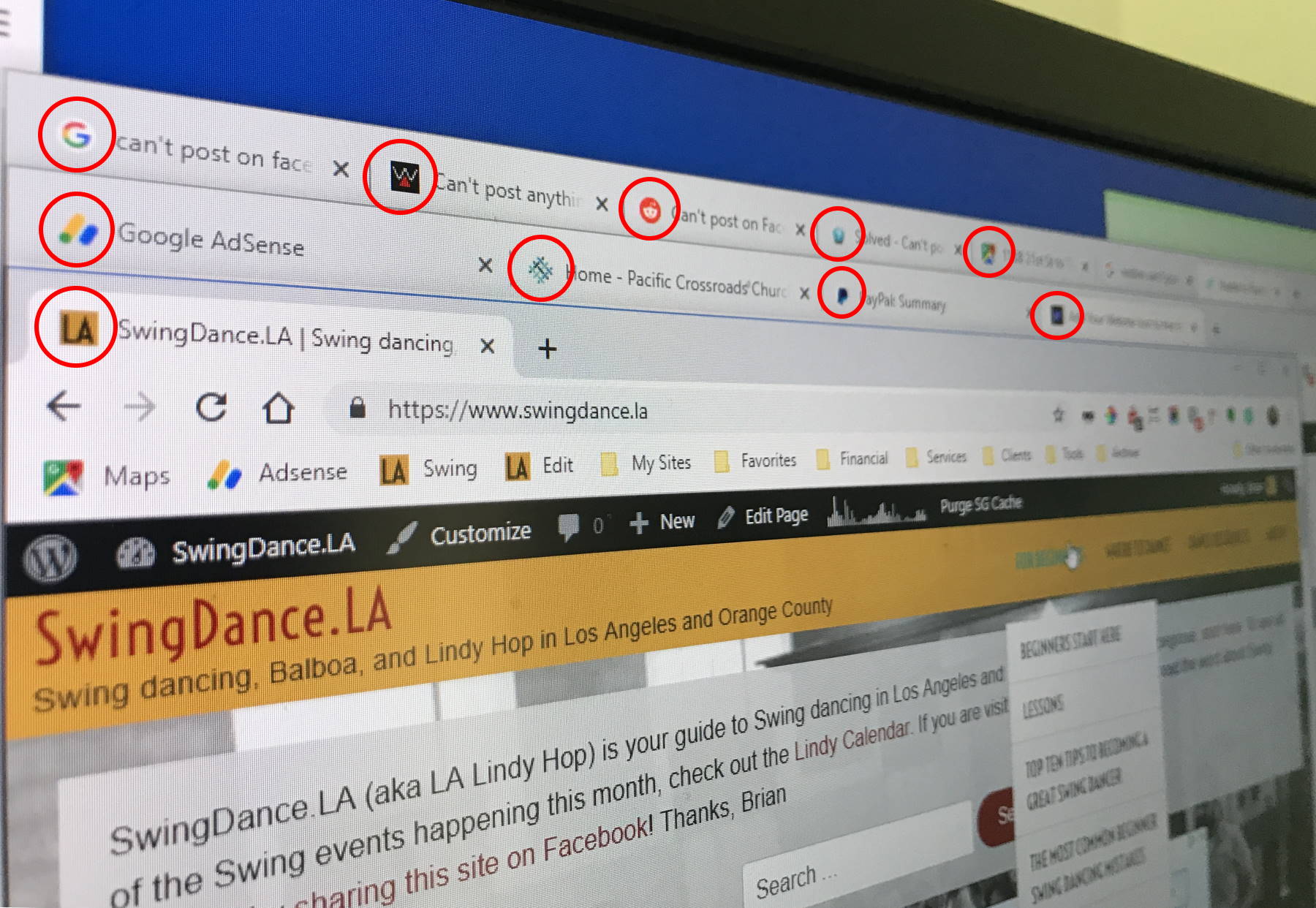
If You’re Using WordPress…
WordPress provides a way to specify the favicon. Log into your site and go to Appearance -> Customize.
Then click on Site Identity and click on the logo area. There, you can specify an image to be your logo.
WordPress recommends it be at least 250px by 250px wide because it also uses it as your iOS button logo. Just keep in mind that it will be shrunken down to 16px by 16px in the browser tab.
If the logo is not square, WordPress will let you crop it right in the admin.
After you specify the image, save, and you’re done!
If You Have FTP Access to Your Site…
Alternatively, if you’re not using WordPress and you are able to FTP to your server, you can place your favicon image in the root and add one line of code to the <head> portion of the pages to specify it.
You’ll need to generate the artwork. Keep in mind that it will be reduced to a 16 x 16-pixel square, so it can’t be too detailed. To allow for higher resolutions in the future, I generate it as a 32 x 32-pixel image. The browser will reduce it as needed. Create your icon and save it as a .png file, then FTP it up to the root of your site.
Add the Head Code
Since I wrote this article in 2012, the browser makers have standardized and now you just need one snippet of code and one icon file type. The following piece of code in the <head> section of your site will work for the latest versions of all major browsers now:
<link rel="shortcut icon" href="http://www.yoursite.com/your_favicon.png" type="image/x-icon" />
Substitute the path to your 32 by 32 pixel.png image path inside the href.
One Important Caveat
Note that all browsers employ caching when it comes to images, including the icon image. So, when you’re testing this you’ll need to clear your browser cache whenever you change the icon.
Hope this helps! – Brian

I am a freelance web developer and consultant based in Santa Monica, CA. I’ve been designing websites using WordPress and from scratch using HTML, CSS, PHP, and JavaScript since 2010. I create websites and web applications for businesses, nonprofits, and other organizations. I have a degree in Electrical Engineering (BSEE) from California Institute of Technology and a degree in Engineering Management (MSEM) from Stanford University. If you need help with your site, you can hire me!
Great tip! Adding a custom website icon enhances branding and makes your site easily recognizable.
Thanks for this helpful post! I always struggled with adding a favicon, but your explanation makes it so straightforward. This will definitely improve my site’s branding.
Is there a way to change the browser tab icon for a website that I am visiting (i.e not my website)? I regularly visit two websites that display the same icon, and it is confusing, so I’d like a way to tell my browser to substitute one of them with something else. Can it be done?
hey, how do you make it your own image? just checking, cos it either nothing or the purple star..
so using this code in Dreamweaver it doesn’t show up when doing the preview in browser. Will it only work when it is uploaded to the server?
Hi Brian,
Just wondering why your name is in the line of HTML when I use https://www.convertico.com/.
Are you hosting the image for the favicon?
Thanks,
John
Hi,
I am adding custom image when I get session time out to web browser tab using $(“link[rel*=’icon’]”).attr(“href”, “/test/images/iamIconError.png”);
when I click on OK button it should restore the default web browser icon but it is not working.
I am using $(“link[rel*=’icon’]”).attr(“href”, “”);
Could you please tell me the fix?
When I click on clear browser history it is working.
I’m a total novice when it comes to HTML. If I don’t have the icon stored on a website, but rather on my desktop, can I just substitute the file path name for the website?
Hi John,
Unfortunately, no. You have to upload that file from your computer to a server that is connected to the Internet. Usually that is done with an FTP program, or through your hosting provider’s website.
Best,
Brian
Thanks, it worked perfectly!
How to fix icon on browser
Thank you. It works perfect..
Hi
My problem is, I have tried everything I could get to change the ico on the browser but nothing. The current browser ico is http://www.afrihost.co.za and I have my ico already fixed and designed and uploaded to but, again, nothing.
http://www.newbirthministries.co.za
The website is a project of mine that I’m currently working on, I have till the end of the June to complete.
I finally GOT IT!!! Thanks Brian, I just hope it works on all browsers.
Thanks Brian my favicon showed up on firefox one more question how do i customize a name of my site or name of a my site pages to appear on the browser alongside with the favicon image,instead of this appearing http://www.mysite.com.
Its working
Hi Brian, new to websites, does this need to be live for the icon to show up?
Hi Brian, thank you for your help and yes its working.
The 4th line seems to have an excess ‘>’ which caused an additional line with that character appearing on top of my header banner image. Deleted it and problem was fixed. Many thanks! this works for all current versions of chrome, firefox, and IE at the time of posting this comment. Also noticed .ico seems to work with IE now.
Thanks you! it works. :)
Thank U so much.
Thank you very much… this works very well :)
Thank you !
Works great – thank you so much!
Hi, thanks for the tip! I have followed the instructions, and it works on all browsers I tested on, except for Chrome… Do you have any suggestions on how to troubleshoot?
HI Christian,
Try replacing the .ico file with the .png file, as in:
Thanks,
Brian
Thanks, I am so unskilled in making websites and things around, but this really helped. A little attention was needed as the links for the images were a bit different and I have used two different images, one .png and the other .ico. Don’t know if it would work with both being .ico, but for me it does not matter. Thanks a lot!
I’m a little lost!
I have copied my image, converted to .png AND .ico
Do i copy the whole content of lines within the blue box above? and do i amend any details within?
Thankyou
Works for IE indeed, but i can’t get it to work in Chrome…
It works so far…
well it works…
I’ve been struggling for long with favicons, and this works! Thanks!
Thank you, excelent
THANK YOU, IT WORKS