There may be legitimate cases where an admin might need to access another Microsoft 365 user’s email. For example, when an employee has left the company. In this article, I’ll explain how to do that
Step One: Getting Permissions
The first part of this requires granting yourself permission to access the user’s email account. As an admin, you can grant these permissions to other users or yourself (admin privileges are required).
First, log into the Microsoft 365 admin center. Then, go to Users -> Active Users and click on the user whose email you want to access.
Next, click the Mail tab, and then click “Read and manage permissions”:
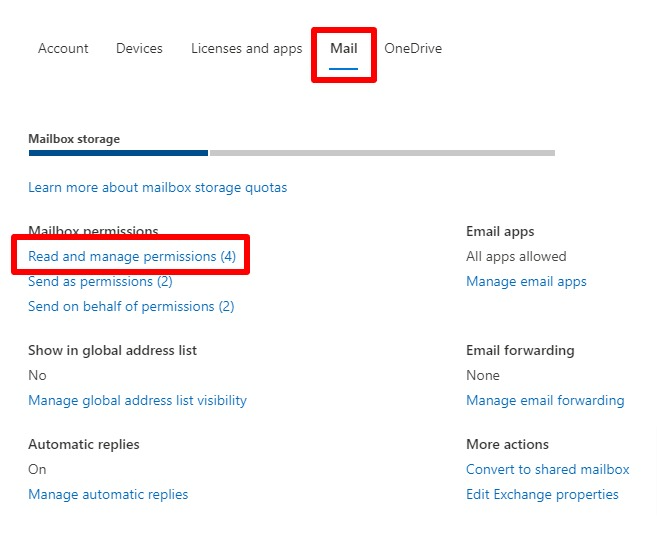
Then click the plus sign next to “Add permissions”. Here, you can search for the users who should have permission to read this person’s email and select them.
Step Two: Adding the Account to Outlook
To actually see the user’s email, go to Outlook’s web mail portal.
Click the 3 dots when you hover over your account name in the left sidebar and select “Add shared folder or mailbox”:
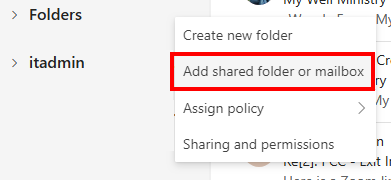
Then type in the email address of the user you want to add; the one you got permissions for the previous step.
And with that, you should have access to their folders in your Outlook web interface! Let me know if this worked for you, or if you have any questions in the comments below. – Brian

I am a freelance web developer and consultant based in Santa Monica, CA. I’ve been designing websites using WordPress and from scratch using HTML, CSS, PHP, and JavaScript since 2010. I create websites and web applications for businesses, nonprofits, and other organizations. I have a degree in Electrical Engineering (BSEE) from California Institute of Technology and a degree in Engineering Management (MSEM) from Stanford University. If you need help with your site, you can hire me!