If you’re a global admin of a Microsoft 365 account with multiple users, you may get in a situation where a user has lost their two-factor device or accidentally deleted their Microsoft Authenticator App, rendering them unable to log into their Microsoft account.
There are two ways to reset a user’s two-factor auth and let them set it up again from scratch.
Method 1: Through the Microsoft 365 Admin Center
- Sign in to Microsoft 365 Admin Center.
- Go to Users > Active users.
- Click the user’s name.
- In the flyout pane, look for Manage multifactor authentication under Security (sometimes under More actions).
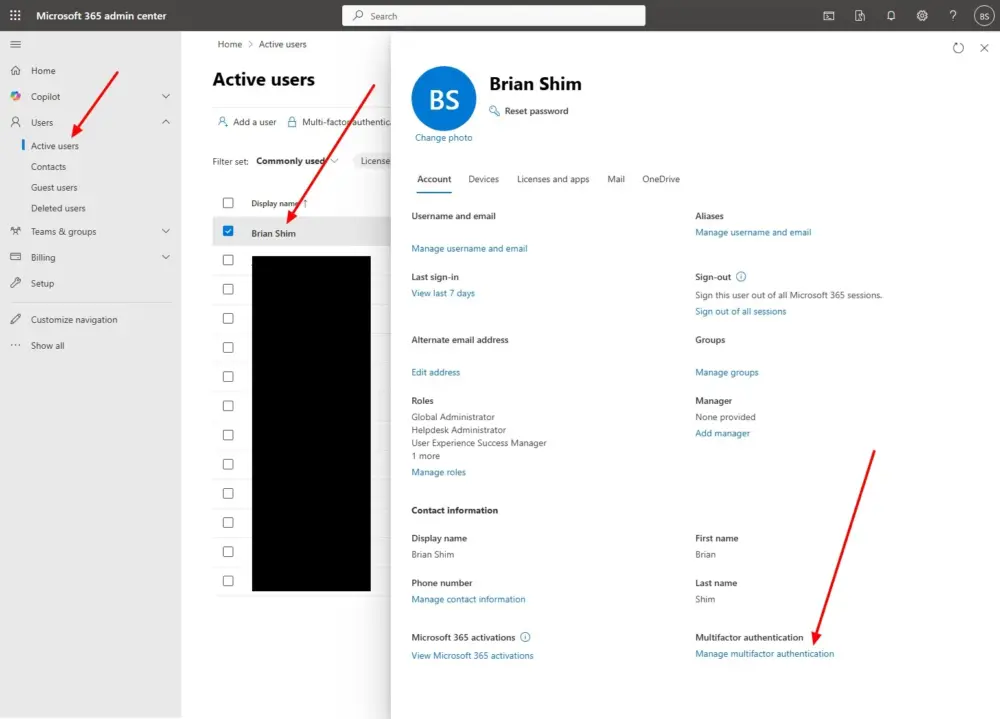
- This opens the old per-user MFA portal at entra.microsoft.com. You will need to sign in again.
- In the MFA portal, find the user, select them, and then click User MFA settings.
- Check Require selected users to provide contact methods again and save.
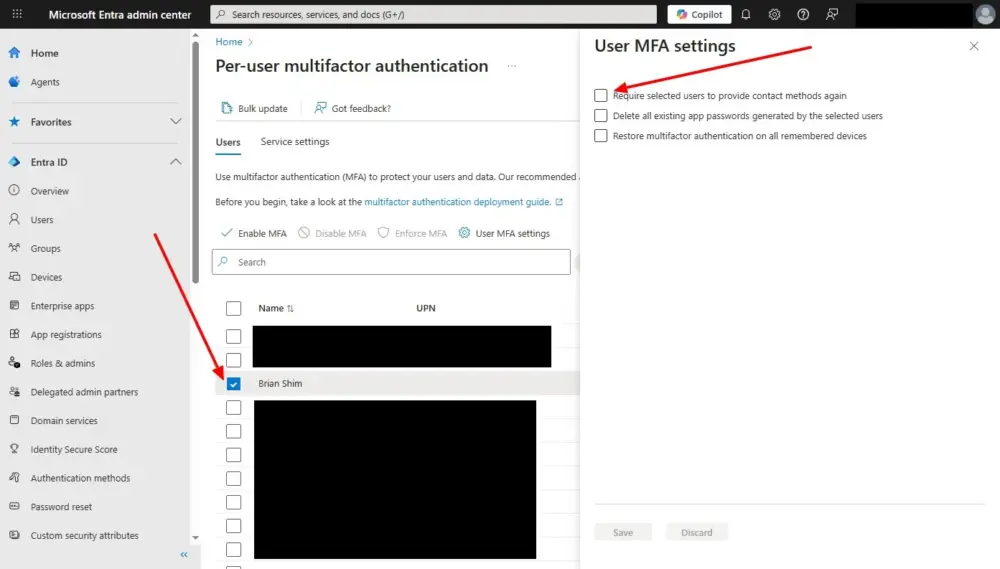
- The wording of this option is not obvious, but it wipes their old Authenticator registration, so they’ll be prompted to set it up again at their next sign-in.
Method 2: Entra Admin Center
This is the “new experience”. This process works for me as well.
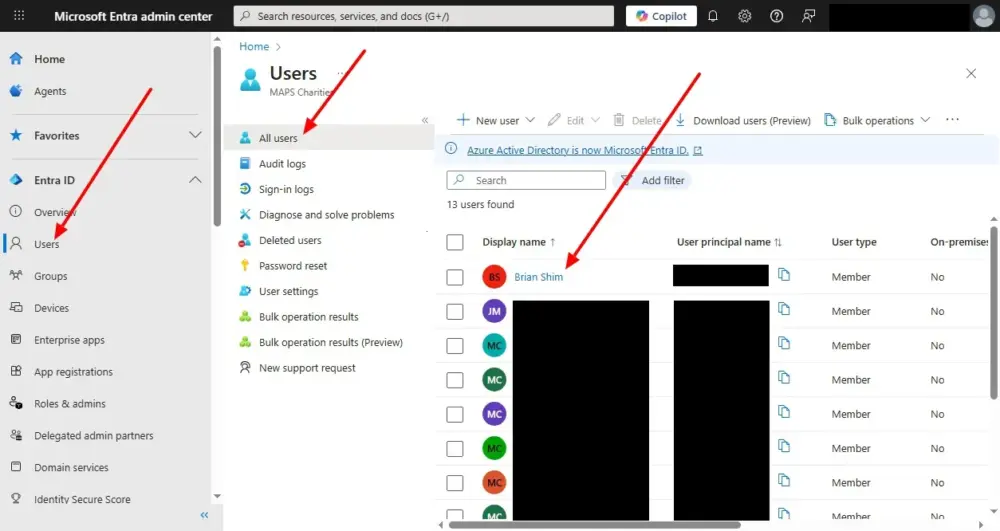
- Go to Entra Admin Center.
- Click on Users > All users in the left menu.
- Click the user’s name.
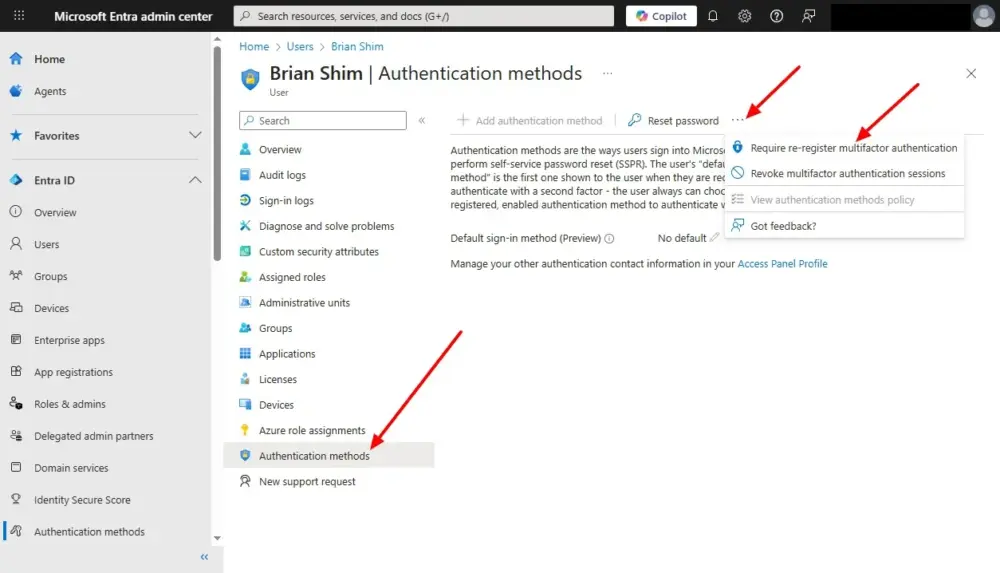
- In the left menu, select Authentication methods. If you don’t see it, click Show more.
- Click the three dots at the top left, then click Require re-register multifactor authentication.
- At their next login, they’ll be asked to register MFA again and can re-scan the QR code.
Conclusion
Did this work for you? Let me know in the comments below! – Brian

I am a freelance web developer and consultant based in Santa Monica, CA. I’ve been designing websites using WordPress and from scratch using HTML, CSS, PHP, and JavaScript since 2010. I create websites and web applications for businesses, nonprofits, and other organizations. I have a degree in Electrical Engineering (BSEE) from California Institute of Technology and a degree in Engineering Management (MSEM) from Stanford University. If you need help with your site, you can hire me!