I think most web developers dread email migrations (or flat out refuse to do them) because we don’t do them often enough to get good at doing them, and the end result doesn’t seem like something super exciting that you can charge a premium for.
I had a situation where I was asked to migrate from Siteground IMAP email to Microsoft 365 for a client for a fixed cost. I knew that my resulting hourly rate would be low because of the time I knew would be needed to learn how to do it. But I decided to do it anyway to learn how to do it once and for all, and perhaps have this as a new service offering in my tool kit.
The Tool I Chose: Bit Titan’s Migration Wiz
Many folks on Reddit recommended BitTitan’s Migration Wiz to do the migration, so I decided to use that product. Their tool can migrate to and from IMAP, Microsoft 365, and G-Suite, among others.
Note that Microsoft itself provides an email migration procedure, which some online have recommended. Whether you use this method or not, it’s a good idea to look over that page.
Another Microsoft 365 migration service that was recommended online is CodeTwo. Unlike BitTitan, they do offer phone support. Yet another one is MailJerry.
In the end, my BitTitan migration was successful, although there were some difficult moments during the process. I’ll share all of the pitfalls as I outline the process below!
Which Migration Wiz License Should You Get?
Since I was just migrating email, and not, say, files, I needed the lowest-cost Mailbox Migration license, which was $14 per email account at the time this article was written. This license has a 50GB data limit. If you have more than that much data in a mailbox, you’ll need the next license up.
But, don’t buy the licenses now, for a big reason that I’ll mention below. You can get everything set up and verified in Migration Wiz before paying anything!
Migration Caveats
Migration Wiz doesn’t have a limit on email size, but Microsoft 365 does. Microsoft says the limit is 35 MB, but the limit could be as low as 20MB due to how attachments are encoded during transmission. BitTitan does provide instructions on how to increase this in Microsoft 365 and Exchange, but I haven’t tried these.
If you need to migrate a mailbox larger than 100GB, BitTitan has some instructions for added hoops you will need to jump through, although I found them to be vague.
When migrating email, contacts won’t get migrated.
Before proceeding, it’s probably a good idea to review the BitTitan FAQs.
You should make sure your client understands these limitations.
Preparation
Being prepared is one of the keys to getting an email migration done efficiently. That’s important because you’ll probably have to coordinate with the client on when to do the migration, often during nighttime hours, and it would be embarrassing to have to reschedule multiple times because you didn’t have a key piece of information. Here are some of the things you should have beforehand:
- When migrating from IMAP, you’ll need the source mail server URL and IMAP port, plus the email address, username, and password for each account that you’re migrating.
- It’s helpful to know the size of each mailbox that you’re migrating so you have an idea of how long the migration will take.
- On the Microsoft 365 end, you’ll need an admin account. In addition, each destination account needs to be created in advance AND licensed! Very important! A Microsoft Business Basic license will do.
How Long Does a Migration Take?
I found that Migration Wiz would move about 2GB per hour from IMAP to Microsoft 365. So if you have a 10GB mailbox, we’re talking about five hours or so. Knowing this will help you schedule the migration.
BitTitan Setup
Creating an account on BitTitan is free and doesn’t require a credit card, so you can do that at any time.
Once you’re logged in, you’ll need to create a project where you enter the source and destination account information.
The info for IMAP email is easy; just enter the information I listed in the previous section. For Siteground, I also clicked the SSL checkbox.
Microsoft 365 Headaches
If your source or destination is Microsoft 365, you’re in for some “fun” (I say that sarcastically). First, Migration Wiz will ask for your admin login credentials. I had hoped that would be all it needed but unfortunately, it requires a whole Microsoft “app” to be set up with Application ID, Object ID, and Client Secret.
Setting up the Microsoft app is one of the most painful parts of the migration process. BitTitan provides Microsoft API setup instructions consisting of literally dozens of steps, but unfortunately, some steps were out of date for me. Menu items in the instructions were renamed or had moved. I can’t even try to document the whole process here because I don’t remember exactly what I did, and whatever it was will probably be out of date by the time you read this. In the end, I was able to muddle through by clicking around and experimenting, but it took some luck. I rejoiced when I got my credentials!
When you finally do get your IDs and Secret, store them in a safe place, and enter them into Migration Wiz.
“You must use multi-factor authentication to access” Error
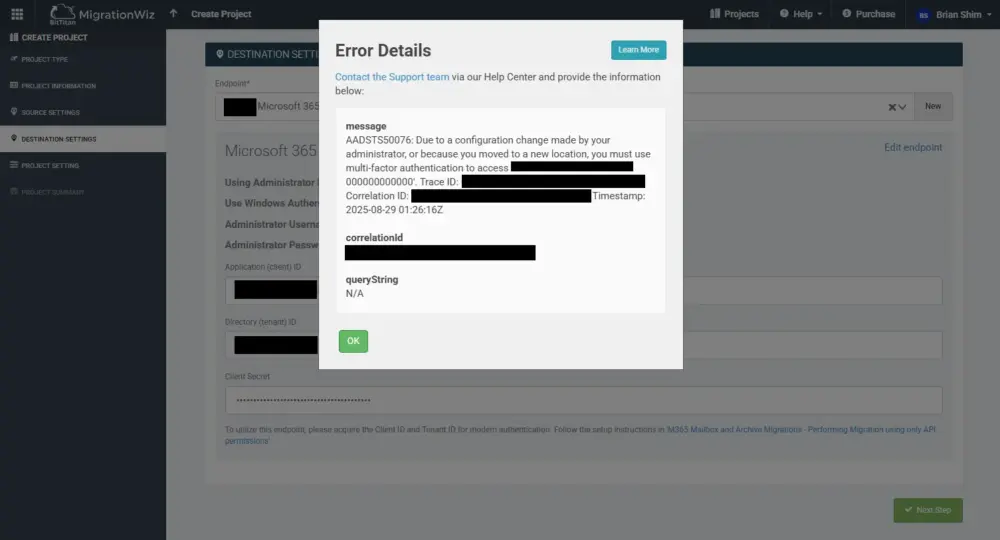
Unfortunately, when I tried to submit the Microsoft credentials in Migration Wiz, I got this error:
AADSTS50076: Due to a configuration change made by your administrator, or because you moved to a new location, you must use multi-factor authentication to access
The BitTitan help docs have an entry for this error code that says:
This error indicates that the administrator account used for the endpoint in the project is being blocked by 2FA/MFA or Conditional Access Policy. Check to ensure the account is excluded from 2FA/MFA and any Conditional Access policies and the Azure Security Defaults are disabled.
Unfortunately, the instructions don’t tell you how to do that. By Googling around, I was able to figure out how to disable MFA. You have to do it in the Microsoft Entra admin center.
First go to Users in the main menu and click the three dots in the right header area and select “Per-user MFA”. You’ll see a list of all users with MFA status. Confirm that MFA is disabled for all users. If not, then disable them.
I thought that would be all, but no, you also have to disable MFA in the security defaults. Go to Overview in the main menu and click the Properties tab and go to the bottom of the page then click the “Manage security defaults” link. In the sidebar that slides out, select “Disabled (not recommended)” for your Security defaults and save.
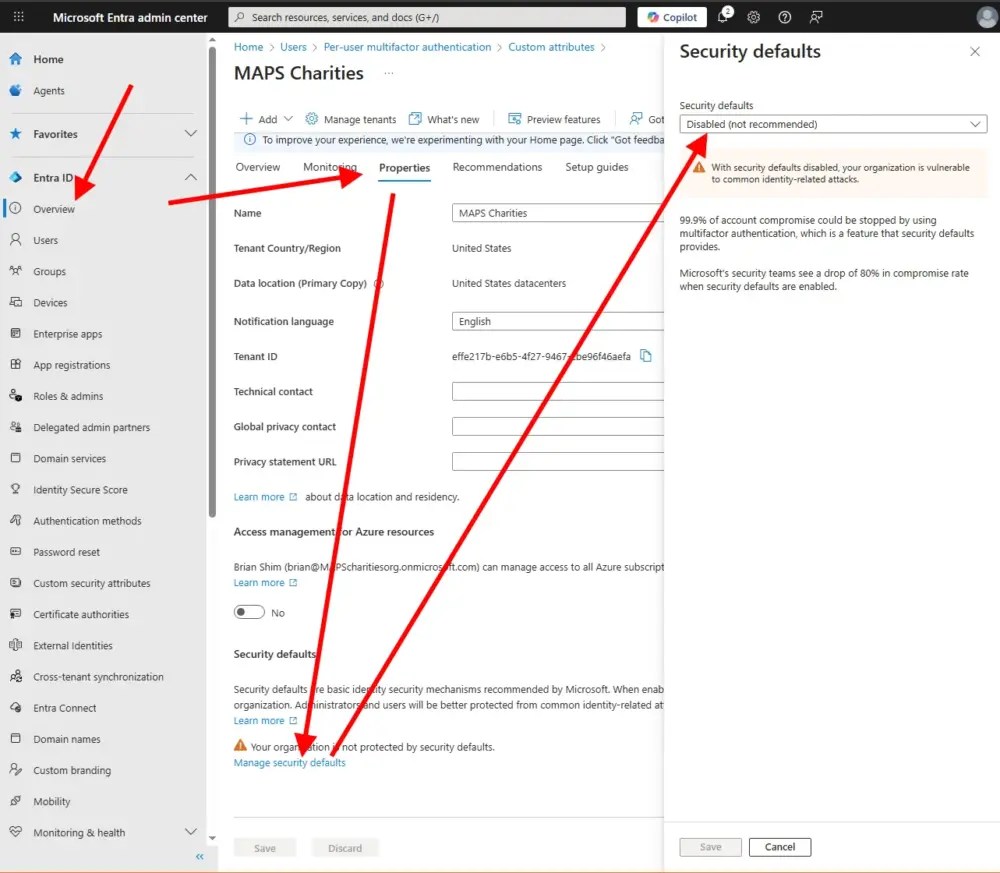
When I did this, I was able to submit my Microsoft credentials in Migration Wiz!
Entering the User Accounts
After entering your source and destination credentials squared away, you’ll need to enter all of your source IMAP emaill addresses, usernames, and passwords. If these are accurate, that should be no problem.
Purchasing Your Licenses – No Refunds!
After all of the info is entered, it’s finally time to purchase your licenses. Each license can be used for one mailbox migration
After doing some research, I found out that licenses are non-refundable! This is a pretty big disadvantage of BitTitan in my opinion! I was only buying five licenses but what if you need 1000? I recommend getting on a call with a sales specialist before purchasing anything.
After I purchased my licenses, I tried to apply them to my five users but it wouldn’t let me! It said I needed to purchase a User Migration Bundle! I was starting to get pissed off because the sales specialist said I only needed the Mailbox Migration license!
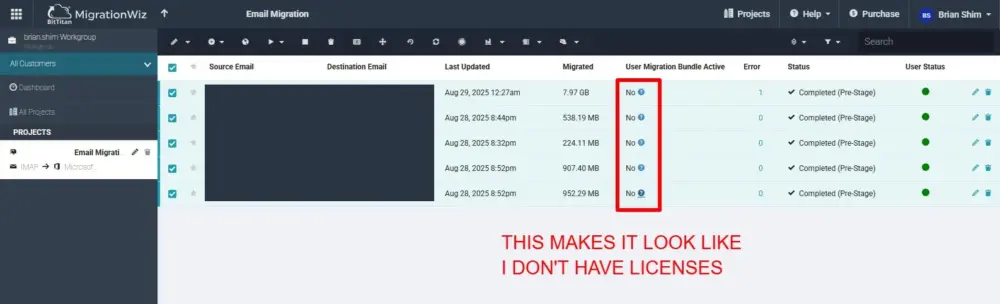
So, I emailed support, and they clarified that the “User Migration Bundle Active” column only refers to that type of license. If you purchased a Mailbox Migration license, you can ignore that column; it will just work. That was good news, but also confusing. I found at least one user on Reddit who fell for this and purchased the wrong licenses, so beware. Anyway, moving forward.
Testing Before Migrating
The next thing I did on Migration Wiz was verify credentials on all accounts, which passed, thank goodness.
After that, I did a test migration on one account. After kicking it off, it said “submitted” in the Status column, and that didn’t change for several minutes, so I emailed support again, but before I got an answer, it started working. You just have to wait.
The Pre-Migration
At this point, I was ready to start migrating! Actually, BitTitan recommends splitting up the migration into two stages. First is a “pre-migration” where you migrate the bulk of the emails up to say, 90 days ago. Then you change your DNS MX records, then you complete the rest of the migration.
Depending on the size and number of mailboxes you have, this could take many hours or even days! I started my pre-migration at around 9 PM. It was still running at midnight, so I just went to bed and it was done in the morning. I verified that the pre-migrations completed on all accounts, but there was one error in my sent items folder:
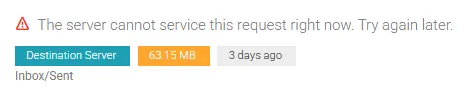
The explanation wasn’t helpful so I emailed support. This was the most useful response:
The error The server cannot service this request right now. Try again later is a timeout error which is usually transient and will disappear after resubmitting another migration pass.
Additionally, MigrationWiz has a built-in system of preventing duplicates. We embed a watermark in each destination item as we migrate it across, and also place a matching watermark in a database on our end, representing the source. In this way, there is a two-layer protection against duplicates. This means resubmitting the migration won’t cause any duplicates.
By this time, it was a couple of days after the completed migration, so I did not re-submit it, since another support rep pointed out the migration completed successfully. But it was reassuring to hear about the system to prevent duplicates.
DNS Update
The next evening I updated the DNS records with the Microsoft 365 MX, TXT, CNAME, etc. values. Check out my special instructions for setting up DKIM while you’re at it.
One thing I wasn’t sure about is whether it was safe to change the user email domains from the default “.onmicrosoft.com” to the original domains while migrating. I tried it on my own admin account (which I used in Migration Wiz) and that didn’t stop the migration. I was too scared to try it with one of the user accounts while migrating, but I suspect it would have been fine.
Finishing the Migration
I went back into Migration Wiz and kicked off a regular migration. Again, note that it spends a lot of time in the “submitted” state. Don’t panic, it’s not hung.
After about an hour or so, the migration was done!
Testing and Final Steps
Be sure to test to make sure the messages got to their inboxes and that sending and receiving are working using the new Microsoft credentials.
Of course all users will have to update their email login credentials in their email clients. BitTitan has a service that is supposed to do this but I didn’t try it.
If you had to disable security defaults in Microsoft 365, remember to re-enable them using a similar process as described previously.
Overall Impressions of BitTitan’s Migration Wiz
I was relieved after the two-night migration saga was over! Overall, Migration Wiz did its job.
The hardest parts had to do with Microsoft authentication and errors. BitTitan could have helped there by keeping their setup documentation more up to date and having more instructions on how to fix Microsoft authentication errors.
BitTitan’s India-based email support was actually pretty good initially. They responded in just a few minutes late at night, which was in the morning in India, so that worked out well. This was faster than most chat-based support! Then I had another question a couple of days later, and they took a whole day to respond (note it was over the weekend). When I sent another message, they took a few hours to respond.
Migration Wiz itself is pretty easy to use (much of it is indeed structured like a wizard that has step-by-step forms). I was confused by the table of users, which seemed to say that I needed a different license. They should clarify that because I found others online confused as well.
One huge downside of BitTitan is that they don’t give refunds!! That is almost a show-stopper for large migrations. For that reason alone, I might try using Microsoft’s free email migration tool next time. Another recommended service on Reddit was AvePoint, but they said it was expensive.
Overall, BitTitan got the job done for me, and I would still consider it for future Microsoft migrations, especially since I know some of the pitfalls now.
How Much Should You Charge for Email Migrations?
I was wondering what a fair and reasonable amount would be to charge for email migrations. Clearly, there is a fixed element that encompasses the setup time regardless of how many accounts you migrate. But each mailbox adds some setup time and migration time (and possibly dealing with errors). On top of that, size matters: migrating a 10GB mailbox could take five hours. Granted, you don’t have to be there the whole time, but you still have to worry about it and deal with it at the end.
So the most accurate estimate would be some fixed fee plus a per mailbox fee plus a per megabyte fee. Plus fees for large emails (over 20MB) and mailboxes over 100GB.
I got a wide variety of answers on Reddit:
- $500 fixed fee plus $175 per user
- $400 fixed fee plus $130 per user
- $200 fixed fee plus $50 per user
- $300 per user with a $3500 minimum
- $250 per user
- $150 per user
- $100 per user
- $69 per user
- Free for clients on a maintenance plan
The actual total number of hours I spent on the migration was 7.38 hours. However, that was my first time and it would go significantly faster after everything I learned (and documented in this article). And, some of that time was spent helping the client with unrelated Microsoft 365 issues.
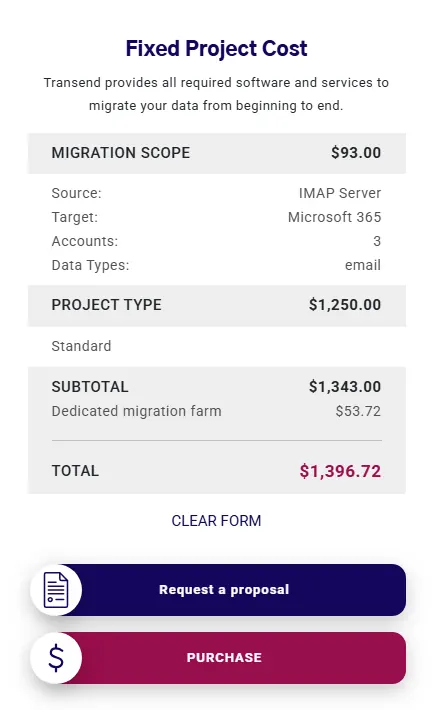
I found another company offering white-glove email migration services called Transend. Their pricing was a whopping $1332.24 for the first account, plus $32.24 for each additional one.
What do you think is reasonable?
More Questions?
On the BitTitan website, there is an option to set up a Zoom call with a salesman who can help you choose which product to get and answer questions. I did it, and he was actually quite helpful, so you may want to set up a call if my article doesn’t answer all of your questions. Or if you are migrating a large number of mailboxes.
Please leave a comment below if you have questions for me. – Brian
Featured image photo by Austin Distel on Unsplash.

I am a freelance web developer and consultant based in Santa Monica, CA. I’ve been designing websites using WordPress and from scratch using HTML, CSS, PHP, and JavaScript since 2010. I create websites and web applications for businesses, nonprofits, and other organizations. I have a degree in Electrical Engineering (BSEE) from California Institute of Technology and a degree in Engineering Management (MSEM) from Stanford University. If you need help with your site, you can hire me!